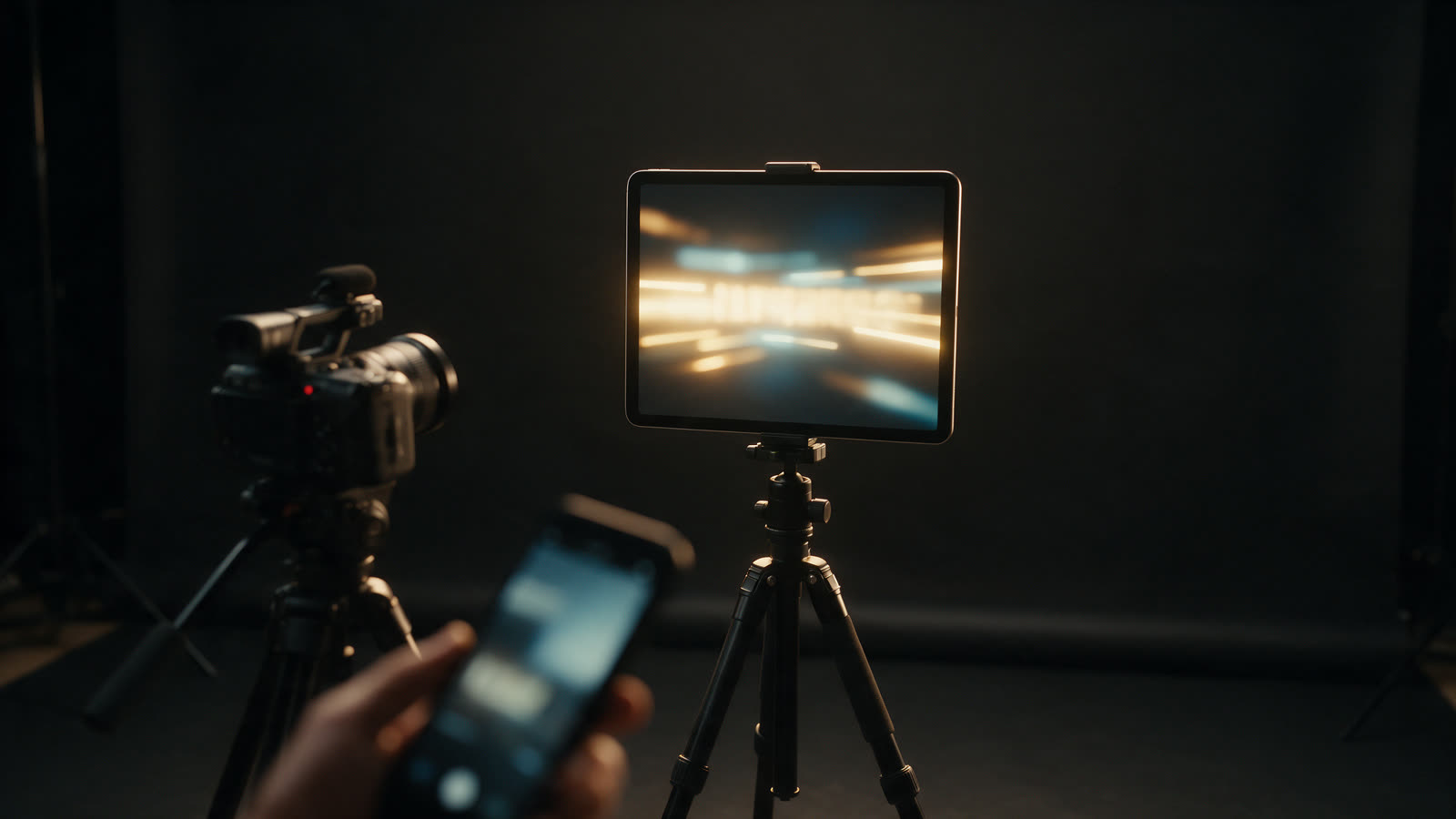
If you shoot alone, or work with the camera away from your hands, an iPad on a stand works well as a large, bright prompter. The awkward part is starting it, stopping it and fixing the speed while you are standing in front of it. An iPhone remote solves that.
Why use a remote
- You stay in position. No walking back to the prompter to start or change something.
- The iPhone shows what the iPad is showing, so you can check it from where you stand.
- One device can hold your script and notes while the other faces the camera.
Setting it up
- Install TeleprompterThis on both devices and keep them on the same local network.
- On the iPad, choose to use it as the prompter and open pairing. It shows a short code.
- On the iPhone, choose the remote role, select the iPad, and enter the code. You only pair once.
- Open a script on the iPhone and send it to the iPad, or open it from the list of scripts on the iPad.
What the remote controls
- Play, pause and speed. A speed stepper with one big play button.
- Scroll or voice. Switch between a set speed and following your voice. Turning on voice starts listening straight away.
- Text size and mirror. Make the text larger or smaller, and flip it for a beam-splitter rig.
- Display. Line and paragraph spacing, side margins, the position of the reading line and colours.
- Sections. Tap a section to jump the iPad there, or step to the next with a tap.
- Camera. Turn the iPad's camera on for rehearsal, and start and stop a recorded take.
A live preview of the iPad
The top half of the iPhone shows the iPad's screen, with the same text, line breaks and cues, and a marker where you are reading. If you edit the script on the iPhone, the iPad updates as you type, so you can fix a line without touching the iPad.
Choosing the microphone
For voice follow, tap the microphone on the remote and choose which device listens. The iPad's microphone is convenient when it is close to you. If the iPad sits on a rig further away, the iPhone, or a connected Bluetooth or wired microphone, may hear you more clearly. The remote shows the name of the microphone in use under its button.
Tips for a smooth session
- Pair the devices before the shoot, not during it.
- Keep the iPad's screen brightness up and its auto-lock off while you record.
- Do a rehearse take with the camera on to check the text size and reading line from your real position.
- Keep the iPhone in your hand, or at your side, off camera.
- Save your speed and display settings so the next session starts where this one ended.
What you need
An iPhone and an iPad running TeleprompterThis. Voice follow, the camera and the remote's live controls are part of TeleprompterThis Pro, and a Pro purchase on either device covers the pair while they are linked.
Frequently asked questions
Can I control an iPad teleprompter from my iPhone?
Yes. In TeleprompterThis, you pair your iPhone with your iPad once, and the iPhone becomes a remote: start and stop, change the speed and text size, jump between sections, edit the script and control the camera.
Do the iPhone and iPad need to be on the same Wi-Fi network?
They need to be able to reach each other on a local network. Pairing uses a short code you enter once on the iPhone.
Can I edit the script from the iPhone while it plays on the iPad?
Yes. Edits made on the iPhone appear on the iPad as you type, and the iPhone shows a live preview of what the iPad is displaying.
Which microphone does voice follow use?
You choose. It can listen with the iPad's microphone or with the iPhone's, including a connected Bluetooth or wired microphone. Placing the iPhone close to you often gives a cleaner signal.