A confidence monitor is a screen facing the speaker, not the audience. An iPad on a stand at the foot of the stage can do that job: large text, few lines, and your eyes stay on the room. Here is how to set it up so it helps and does not get in the way.
What a confidence monitor is
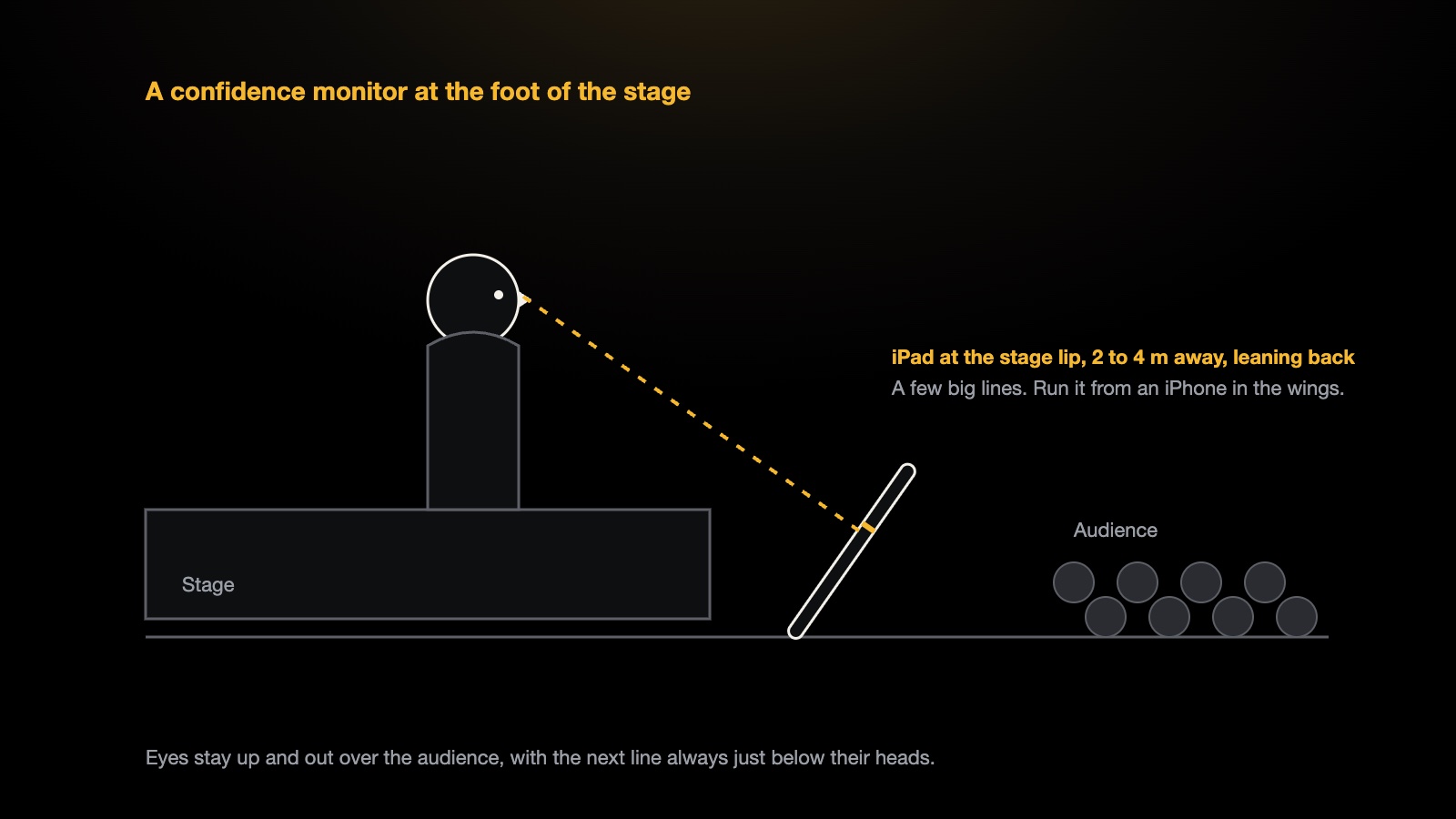
At a conference or a theatre, the confidence monitor sits low at the front of the stage, angled up at the speaker. It shows notes, the next slide or a script. It is called a confidence monitor because it gives you the safety of seeing the next words without turning round to look at the big screen behind you.
It is not a teleprompter glass rig. There is no camera behind it, and you are not trying to read while looking into a lens. You are looking at the audience and glancing down a little.
Where to put the iPad
- At the foot of the stage, centre. Put it where your eyes land when you look at the middle of the room, so a glance down is small. Tilt it up towards you.
- On a stand, not on the floor. A floor stand or a short tripod gets it nearer your eye line. The lower it is, the more you look down, and the more your head dips.
- Two if the stage is wide. If you move, a second iPad at one side stops you turning your back to read.
- Keep it out of the audience's sight. A matte, dark stand is fine, and so is a small cloth hiding the cable.
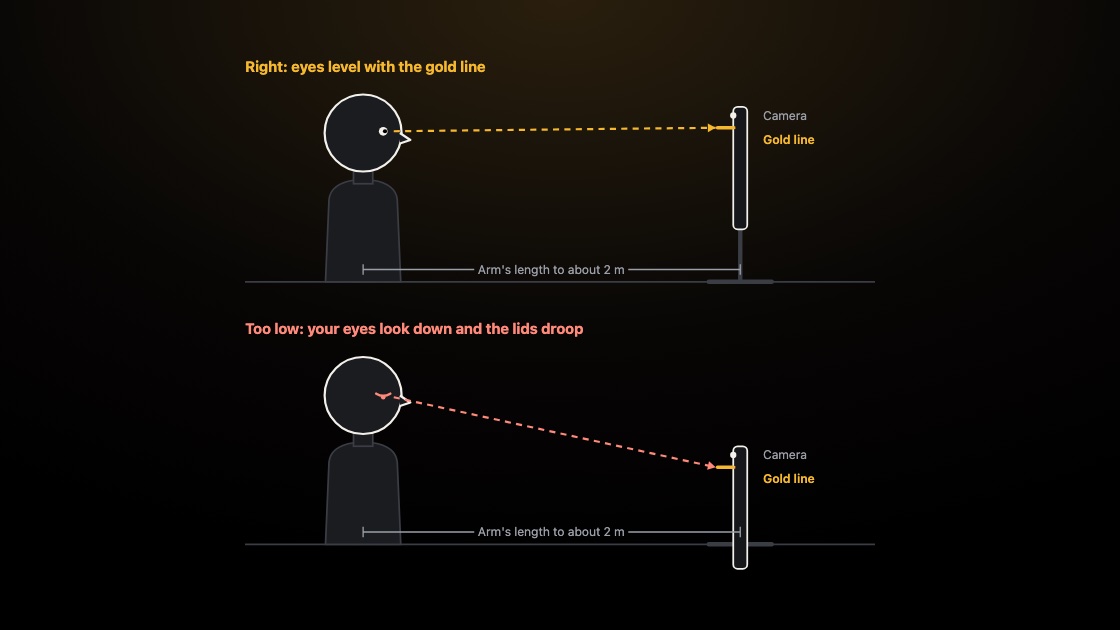
Our guide to where to put your teleprompter covers distance and height, and most of it applies here. On stage, the distance is often 2 to 4 m, so the text has to be much bigger.
Large text, few lines
From across a stage you want to read a whole phrase in one glance. That means big letters and very few of them.
- Text size. In TeleprompterThis, Text size is in Display and goes up to 120 pt. Raise it until a phrase is readable from where you stand, with no squinting.
- A narrow column. Raise Side margins so each line holds only a few words. Short lines mean your eyes only move down.
- Line spacing. More space between lines makes it easier to find your place by glancing.
- Write for it. Short sentences, one idea per line, section headings that you can see from far away. An
# Headingstarts a section you can jump to. - High contrast. Keep the screen at full brightness. The default look is white text on black.
Use cues for the things you must not miss. [PAUSE] to stop, [SLIDE 3] to remind you which slide the next words belong to, and [@10:00] as a time check at the point you should reach after ten minutes. Notes in brackets are shown but not read aloud. See how to write a script for a teleprompter for the whole set.
Scroll or voice follow in a noisy room
Scroll moves the text at a speed you set, and you keep up with it. Voice follow listens to you and moves the text to where you are. Both work on stage, in different rooms.
| Scroll | Voice follow | |
|---|---|---|
| Quiet room | Works, but you must keep to the pace | Best: the text waits when you pause or the crowd laughs |
| Loud room, music, echo | Reliable, since it does not listen | Less reliable: noise makes recognition worse |
| Speaker ad-libs | Runs on without you unless someone pauses it | Holds its place while you talk; [OFF-SCRIPT] marks where you expect to |
If you use voice follow, the microphone matters more than anything else. A lapel or headset microphone close to your mouth beats the iPad's microphone across a stage. TeleprompterThis can listen with the iPad's microphone or with the iPhone's, including a connected Bluetooth or wired microphone, so an iPhone in your pocket or on a lectern can do the hearing. Details are in how voice-following teleprompters work. Speech is recognised on the device, so the room's Wi-Fi does not matter for it.
Voice follow is part of TeleprompterThis Pro. Scroll mode is free.
Running it from an iPhone across the stage
You do not want to walk back to the iPad to start it or fix the speed. Pair an iPhone with the iPad once, with a short code, and the iPhone becomes a remote. It can play and pause, change the speed and text size, jump between sections and shows a live preview of the iPad's screen. A colleague at the side of the stage can run it for you, or you can hold the iPhone. The full list is in using an iPhone as a remote for an iPad teleprompter.
The remote's live controls are part of Pro, and a Pro purchase on either device covers the pair while they are linked.
The devices talk over a local network. Venue networks sometimes stop devices from seeing each other, so pair them and test at the venue, not in the car park.
Before the doors open
- Pair the iPhone and iPad the day before, and again at the venue.
- Charge both, and plug the iPad in if you can. The screen stays on while the prompter is open.
- Stand where you will speak. Check the text from the farthest spot you will walk to.
- Run the whole script with the sound system on. If voice follow slips, switch to scroll.
- Know what the iPad does if the remote drops. You can still tap it, drag the text and change the speed on the iPad itself.
- Know your opening and closing lines by heart. The monitor is for the middle.
Frequently asked questions
What is a confidence monitor?
A screen placed facing the speaker, usually at the foot of the stage, that shows notes, a script or the next slide. The audience does not see it. It lets the speaker keep their eyes on the room while the words are within reach.
Can I use an iPad as a confidence monitor?
Yes, as long as the text is large enough to read from where you stand. Put it on a stand at the foot of the stage, set large text with a narrow column, and run it from a second device so you are not walking back to it.
Should I use scroll or voice follow on stage?
In a quiet room, voice follow lets you set the pace. In a loud or echoing room, or with a hand on the controls, use scroll and have someone adjust the speed. Test both with the room's sound on before the audience arrives.
Do I need Wi-Fi for the iPhone remote?
The two devices need to reach each other on a local network once paired. Some venue networks stop devices seeing one another, so test at the venue before the event.